
Home / Reviews / Setup and privacy
Why Does My Indoor Camera Keep Going Offline? How to Fix It
Most offline indoor cameras have a Wi-Fi band, signal, power, or firmware problem, not a broken camera. Here is how to find the cause and fix it, step by step, using each brand's own guidance.

Affiliate note: Bestindoorcam.com may earn a commission if you buy through a store link. That does not change which camera we prefer. Read how affiliate links and ads work and how we research and review cameras.
Last updated: October 23, 2026
An indoor camera that keeps going offline almost always has one of five problems: a weak Wi-Fi signal where the camera sits, a router setting that pushes it onto the wrong band, unstable power, outdated firmware, or a changed Wi-Fi password. Work through the fixes below in order, starting with the free and fast ones, and most cameras come back and stay online without a factory reset.
TL;DR: how to stop an indoor camera from going offline
- Check whether it is really the camera. If other devices also lose internet, the problem is your router or internet service, not the camera.
- Restart the router, then the camera. Unplug the router for about 30 seconds, then power-cycle the camera.
- Put it on 2.4 GHz. Many cameras only work on 2.4 GHz. If your router merges 2.4 and 5 GHz under one name, split them or connect the camera to the 2.4 GHz network.
- Fix the signal and the power. Move the camera or router closer, use the original power adapter, and avoid long or cheap USB cables.
- Update the app and firmware, then reset as a last resort. A factory reset and fresh setup fixes the rest.
Why does my indoor camera keep going offline?
Short answer: the camera lost its connection to your Wi-Fi or to the manufacturer's cloud, usually because the signal is too weak, the router steered it to a band it can't use, the power dipped, or the network settings changed. The camera itself is rarely broken.
The manufacturers' own support pages agree on this. Ring's guide to offline devices starts with power, signal strength, and the 2.4 GHz band. Wyze's offline checklist starts with the status light, the power connection, and whether other devices are offline too. TP-Link's Tapo offline guide puts the power supply first. That's the order we follow here.
| What you see | Most likely cause | Try first |
|---|---|---|
| Every device in the house is offline | Router or internet outage | Restart modem and router; contact your internet provider |
| Camera drops offline a few times a day | Weak signal or interference | Move the camera or router closer; check signal strength in the app |
| Camera went offline right after a new router or password | Saved Wi-Fi details are out of date | Update the camera's Wi-Fi network in its app |
| Camera won't join the network at all | It's being offered 5 GHz only, or the security mode doesn't suit it | Connect it to a 2.4 GHz network with WPA2 |
| Works at home on Wi-Fi, but not from outside | Camera can't reach the cloud | Check firewalls, VPN or filtering apps, and router DNS |
| Camera restarts or the light goes dark | Power problem | Use the original adapter and cable in a different outlet |
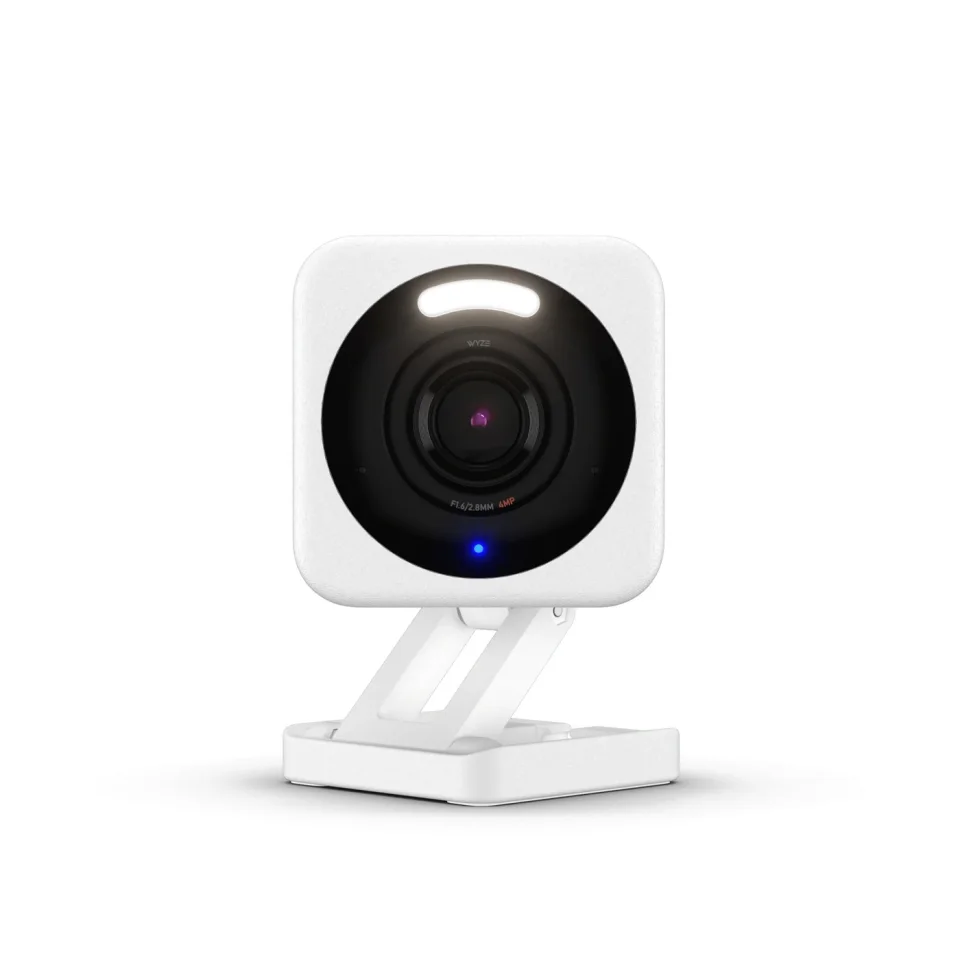
Is it the camera or my Wi-Fi?
Short answer: check another device first. If your phone, TV, or laptop also can't load a website, the problem is your network or your internet service, and no camera setting will fix it.
Turn off mobile data on your phone so it has to use Wi-Fi, then open any website. Google's Nest camera connection guide recommends exactly this test, and suggests contacting your internet provider if nothing in the house can connect. If everything else works, the issue is between the camera and the router, and the next steps apply.
Also check the camera's status light. Each brand uses its own colors, so look them up for your model. For example, TP-Link says that on most Tapo cameras a slowly blinking red light means the camera hasn't joined Wi-Fi at all, according to its Tapo app troubleshooting page.
Does restarting the router and camera actually help?
Short answer: yes, it's the fastest fix and it solves a lot of one-off drops. Restart the router first, wait until it's fully back, then power-cycle the camera.
- Unplug the modem and router for about 30 seconds, as Ring and Blink both suggest, then plug them back in.
- Wait until other devices are back online.
- Unplug the camera for a few seconds and plug it back in. Battery cameras can be power-cycled by removing the batteries briefly.
- Give it a few minutes before checking the live view.
If the camera comes back but drops again within a day or two, a restart is only hiding the real problem. Keep going.
Why won't my camera connect to 5 GHz Wi-Fi?
Short answer: many indoor cameras only support 2.4 GHz. If your router broadcasts one network name for both bands, it can steer the camera toward 5 GHz and the connection fails or keeps dropping.
This is the single most common cause after a router upgrade. Mesh systems and internet-provider routers often enable a feature called band steering or Smart Connect, which merges both bands under one name. Here is what the major brands say on their own support pages:
| Brand | Wi-Fi band guidance from the manufacturer | Source |
|---|---|---|
| Ring | All Ring devices work on 2.4 GHz; some also support 5 GHz. Ring suggests trying a 2.4 GHz network if a device keeps disconnecting. | Ring FAQ |
| Wyze | Nearly all Wyze devices require 2.4 GHz. Wyze lists only the Video Doorbell Pro, Battery Cam Pro, Cam Floodlight Pro, and its mesh routers as working on 5 GHz. | Wyze Wi-Fi tips |
| TP-Link Tapo | Recommends a 20 MHz channel width on 2.4 GHz, channel 1, 6, or 11, WPA2/WPA3-Personal, and turning off Smart Connect if drops continue. | Tapo offline guide |
| Blink | Mini, Mini 2, and the Wired Floodlight Camera connect directly to Wi-Fi without a Sync Module; other Blink cameras rely on the Sync Module's signal. | Blink connectivity guide |
How to put the camera on 2.4 GHz
Open your router's app or admin page and look for a setting called band steering, Smart Connect, or single network name. Give the 2.4 GHz and 5 GHz bands separate names, connect your phone to the 2.4 GHz one, and set the camera up again. Wyze's dual-band guide also notes that if you can't split the bands, you can temporarily disable 5 GHz during setup and turn it back on afterward; the camera should stay on 2.4 GHz.
Outside the US, there's one more catch for 5 GHz-capable Ring devices: Ring says that in Canada, Europe, the UK, Australia, New Zealand, and Japan its devices can't use 5 GHz channels 36 to 64, and recommends channels 100 to 165 instead, in its setup troubleshooting article.
How strong does the Wi-Fi signal need to be?
Short answer: strong enough to upload video steadily, which is about upload speed, not download speed. Check the signal reading in your camera's app, and run a speed test on your phone standing right next to the camera.
Wyze gives concrete numbers: about 1 to 2 Mbps of upload for SD streaming and 4 to 7 Mbps for HD, per its offline troubleshooting page. Other brands publish their own figures, so check your model's support page. Ring shows signal strength in the app under the camera's Device Health tile.
If the reading is weak, try these in order:
- Move the camera a foot or two, or move the router to a more central spot. Google suggests even small moves can help.
- Keep the camera and router away from microwaves, baby monitors, Bluetooth gear, and USB 3.0 devices, which TP-Link lists as interference sources.
- Avoid putting the router inside a cabinet or behind a TV.
- Add a mesh node or extender near the camera if the room is far from the router.
Placement matters for coverage too. Our room-by-room placement guide covers spots that see the most without fighting your Wi-Fi.

Could the power supply cause a camera to go offline?
Short answer: yes. An underpowered adapter, a long or thin USB cable, or a loose outlet can make a camera reboot or drop off the network.
TP-Link specifically warns that third-party adapters and extension cords may not provide enough power and recommends using the original adapter and trying a different outlet. For battery cameras, check the charge level; Blink recommends fresh 1.5V lithium AA batteries in its camera offline guide. If the camera is on a smart plug or power strip with a schedule, make sure that schedule isn't the thing turning it off.
Did a new router or Wi-Fi password knock my camera offline?
Short answer: very likely, if the drop started right after the change. Cameras remember the old network name and password and won't find the new one on their own.
Update the camera's network from its app instead of deleting it. Ring has a Change Network option in Device Health, Blink lets you update the Sync Module's Wi-Fi settings, and Google explains how to change a Nest camera's Wi-Fi network. You'll usually need to stand near the camera with the new password ready. An easy shortcut when replacing a router is to reuse the old network name and password, so every device reconnects by itself.
Why does my camera work at home but not when I'm away?
Short answer: the camera is on your Wi-Fi but can't reach the manufacturer's cloud. A firewall, a parental-control or ad-blocking filter, or a DNS problem on the router is the usual cause.
TP-Link suggests temporarily turning off security or filtering software to test, changing the router's DNS server to a public one such as 8.8.8.8, and setting the camera up on a phone's mobile hotspot: if it works on the hotspot but not your router, the router settings are to blame. It also says to turn off client isolation and avoid putting the phone and camera on different networks (for example guest Wi-Fi and main Wi-Fi) during setup, per its camera troubleshooting guide.
If you put your cameras on a separate network for security, as we suggest in how to secure an indoor security camera, that's fine; just set the phone and camera up on the same network and confirm the camera network has internet access.
Should I update the firmware or the app?
Short answer: both. Outdated firmware and outdated apps cause connection problems, and Wyze notes that very old firmware can stop a camera from connecting at all.
Turn on automatic firmware updates in the camera's settings if it has the option, and keep the app updated from your phone's app store. Updates also close security holes; our report on the Tapo C200 and C120 security flaws shows why that matters. If an update was pending when the camera dropped, give it time to finish before unplugging it.
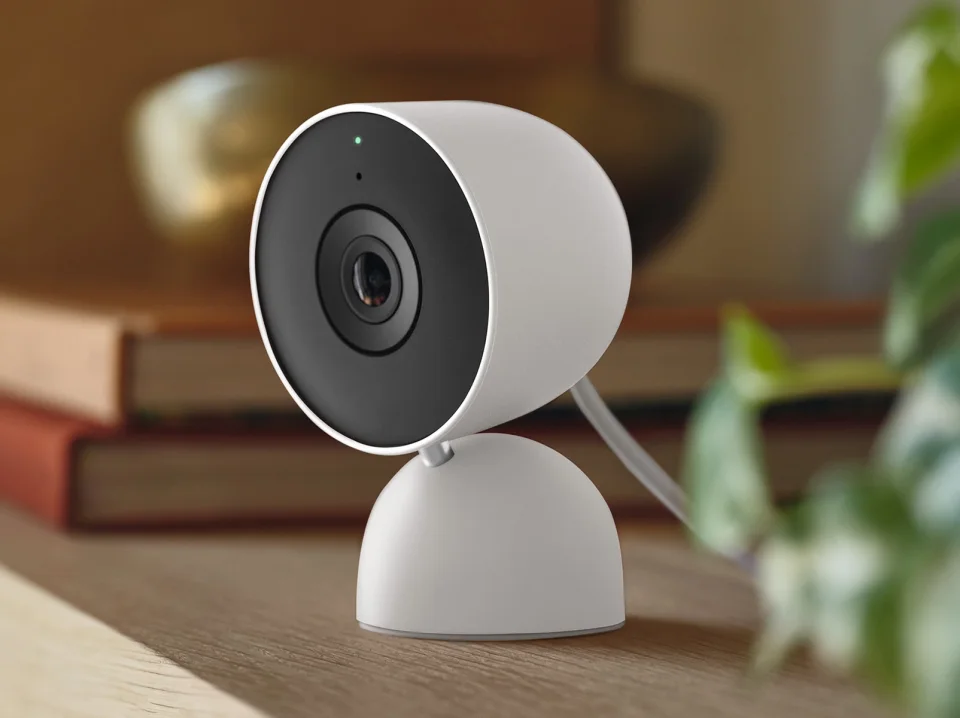
When should I factory reset an indoor camera?
Short answer: only after everything above fails. A reset wipes the camera's settings, so you'll set it up again from scratch, but it clears corrupted settings and is the step most brands list last.
Before resetting, take out the microSD card if there is one, as Wyze advises, so you don't lose saved clips. Reset steps differ by model, so use the manufacturer's instructions; for example, Wyze says to hold the SETUP button for 10 seconds on Wyze Cam and Wyze Cam Pan models in its error code 90 article. Then set it up on a 2.4 GHz network close to the router, and move it to its final spot only after it's online.
Do offline cameras still record?
Short answer: cloud recording stops while the camera is offline, but a camera with a microSD card may keep recording locally, depending on the model. Check your camera's settings or manual for how it behaves without internet.
If gaps in footage worry you, a model with local storage is a useful backup. We compare the trade-offs in indoor camera local storage vs a subscription.

When to contact support or replace the camera
If the camera still drops after a reset, on a strong 2.4 GHz signal, with the original power adapter, contact the manufacturer. TP-Link asks for the light color when it's offline, the device's MAC address, your router model, and how often it happens, and having those ready speeds up any brand's support. If the camera is out of warranty and out of firmware updates, replacing it is often cheaper than more troubleshooting time; our guide to the best indoor security cameras is a good starting point.
FAQ
Why does my security camera keep disconnecting from Wi-Fi?
Usually a weak signal where the camera sits, a router that steers it to 5 GHz, an unstable power supply, or outdated firmware. Restart the router and camera, then check the band, signal, and power.
Do indoor cameras need 2.4 GHz Wi-Fi?
Many do. Ring says all its devices work on 2.4 GHz and only some on 5 GHz, and Wyze says nearly all its devices need 2.4 GHz. Check your model's support page.
How much upload speed does a security camera need?
It depends on the model and video quality. Wyze lists about 1 to 2 Mbps of upload for SD streaming and 4 to 7 Mbps for HD per camera.
Will a Wi-Fi extender or mesh system help?
Yes, if the problem is weak signal. Place the node or extender between the router and camera. Blink suggests temporarily disconnecting extenders if a Sync Module won't reconnect, then adding them back.
Why did my camera go offline after I changed my Wi-Fi password?
The camera still has the old password saved. Update its Wi-Fi network from the camera's app, or reuse the old network name and password on the new router.
Does a factory reset delete my recordings?
A reset clears the camera's settings. Remove any microSD card first, and expect cloud history rules to depend on the brand, so check its support page before resetting.
Comments
No notes yet. If you own one of these cameras, tell us what the spec sheet left out.