
Home / Reviews / Setup and privacy
How to Secure an Indoor Security Camera From Hackers: A 12-Step Checklist
Most camera break-ins start with a reused password or old firmware, not clever hacking. Here are 12 practical steps to lock down your indoor camera, account, and Wi-Fi.

Affiliate note: Bestindoorcam.com may earn a commission if you buy through a store link. That does not change which camera we prefer. Read how affiliate links and ads work and how we research and review cameras.
TL;DR: how to secure an indoor security camera
- Lock the account first. Use a password you have never used anywhere else and turn on two-step verification in the camera app. A stolen password is a far more common way in than any clever hack.
- Keep everything updated. Turn on automatic firmware updates for the camera and automatic updates for the app on your phone.
- Secure the Wi-Fi it lives on. Change the router's admin password, use WPA2 or WPA3, and consider a separate or guest network just for cameras.
- Use the privacy tools you already have. A physical shutter, a privacy mode, or a schedule that turns cameras off while people are home protects you even if something else fails.
- Check who has access every few months. Remove old shared users, old phones, and logins you don't recognize.
How indoor cameras actually get "hacked"
When people picture a hacked camera, they imagine someone breaking the encryption on the video stream. That almost never happens to home users. The real causes are much more ordinary, which is good news, because ordinary problems have simple fixes.
- Reused passwords. If the email and password you use for your camera app also leaked from some other website, attackers can simply try them. This is called credential stuffing, and it is the main reason cloud camera companies now push two-step verification so hard.
- Old firmware. Cameras are small computers, and their software has bugs. Manufacturers patch them, but only if the update actually reaches your camera. Our report on the Tapo C200 and C120 security flaws is a good example of why this step matters.
- A weak home network. A router still using its default admin password, or an old encryption mode, gives an intruder a foothold on everything connected to it, including your cameras.
- Too many people with access. An ex-roommate who still has shared access, an old phone that is still signed in, or a family member who used a weak password can all open a door you forgot about.
The US Federal Trade Commission's consumer guide, How To Secure Your Home Security Cameras, covers the same ground: research security features before you buy, secure your network, update your software, use strong unique passwords, and turn on the camera's security features. The checklist below turns that advice into specific steps.
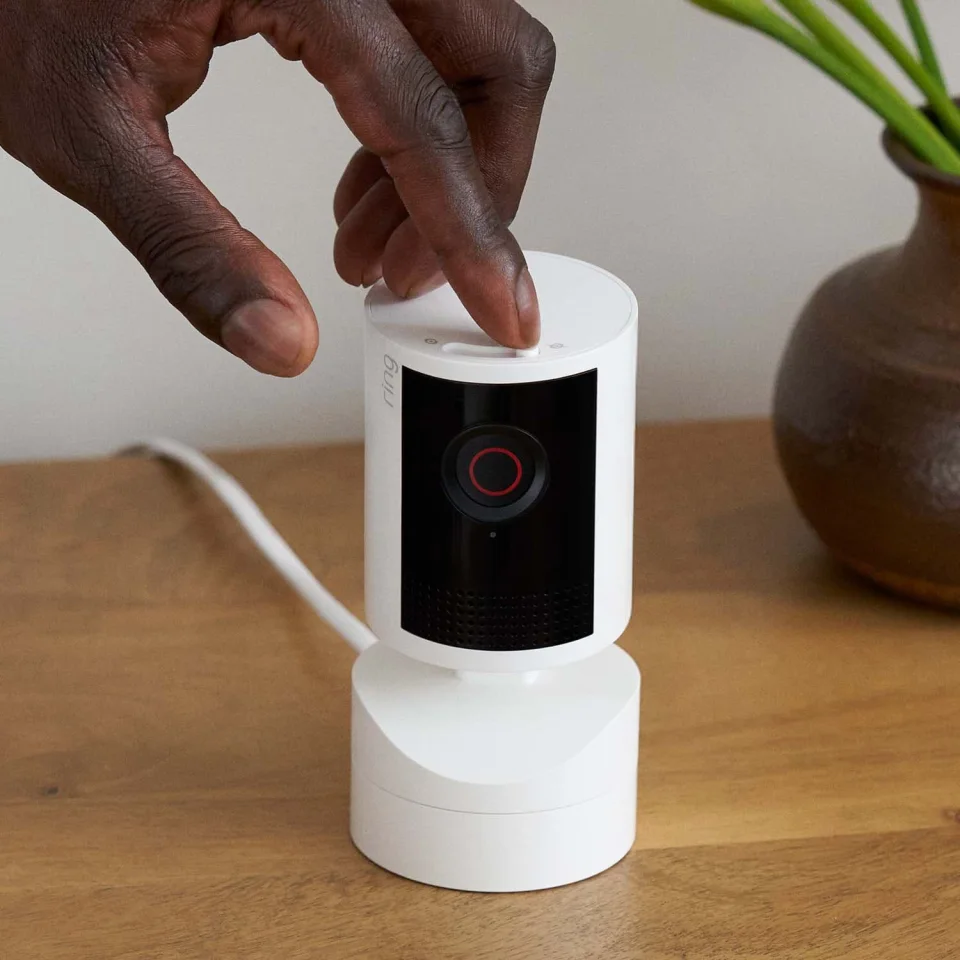
The 12-step security checklist
1. Give the camera account its own password
Your camera account is the key to every live view and every recording. Give it a long password that you use nowhere else. A password manager makes this painless. The FTC specifically warns against using the camera's default username and password or any password you have used before, because default and reused passwords are easy for attackers to find online.
2. Turn on two-step verification
Two-step verification (often called 2FA) means a stolen password alone isn't enough to sign in; the attacker would also need a code from your phone or email. Most major brands now offer it, and some turn it on for you:
- Ring says all Ring accounts require two-factor authentication. In the app's Control Center you can choose to get codes by text message or an authenticator app, according to Ring's two-step verification guide.
- Wyze says 2FA is on by default for accounts that sign in with a Wyze email and password, with text message, authenticator app, or email codes (see Wyze's Two-Factor Authentication article). If you sign in with Google, Apple, Facebook, or Amazon instead, your security depends on that account's settings, so secure that account too.
- TP-Link Tapo lets you switch on Two-Step Verification under Me, then View Account, then Login Security in the Tapo app, according to Tapo's 2FA FAQ. New devices then need a code sent to a trusted device or your email.
- Google Nest cameras live under your Google account, so turn on Google 2-Step Verification for that account.
If you can choose, an authenticator app is generally a stronger choice than text messages, because SIM-swap scams can redirect texts. Save any backup or recovery codes somewhere other than your phone.
3. Change any default device password
App-based cameras usually skip device passwords entirely, but cameras that offer a web login, RTSP streaming, or an ONVIF connection for a recorder often have a separate device password. If yours does, change it from the default during setup. If the camera has a web login, the FTC suggests making sure its address starts with https so your login and stream aren't sent unencrypted.
4. Turn on automatic firmware updates
Look for an auto-update or firmware update setting in the camera's device settings and switch it on. Then check once in a while that it is actually working: the app usually shows the current firmware version. Keep the app itself updated too, ideally automatically through your phone's app store.
5. Lock down your router
Your cameras are only as safe as the network they use. The FTC's checklist is a good minimum: a strong router password, the router's firewall turned on, up-to-date router software, and Wi-Fi encrypted with WPA3 or WPA2. If your router only offers WEP or the original WPA, it is time to replace it.
6. Put cameras on their own network
Many routers can create a guest network or a separate network for smart-home gear. The FTC suggests doing this so that if a computer on your main network is compromised, the attacker doesn't also get easy access to your cameras. Most budget indoor cameras only use 2.4 GHz Wi-Fi, so make sure the network you create includes that band.
7. Turn off features you don't use
Every extra way in is another thing to secure. If your camera or router offers UPnP, port forwarding, RTSP, or remote web access and you don't need them, switch them off. Cloud cameras work fine without port forwarding, so if a setup guide ever asks you to open a port for an app-based camera, stop and check the manufacturer's official instructions first.
8. Use encryption options where they exist
Some brands offer stronger encryption you have to turn on yourself. Ring, for example, offers optional video end-to-end encryption, which Ring says lets only your enrolled mobile devices view your videos. Ring is clear about the trade-offs: encrypted videos are not available through Alexa, Fire TV, or ring.com, and Ring can't recover them if you lose your passphrase and backup. Decide whether those trade-offs work for you before switching it on.
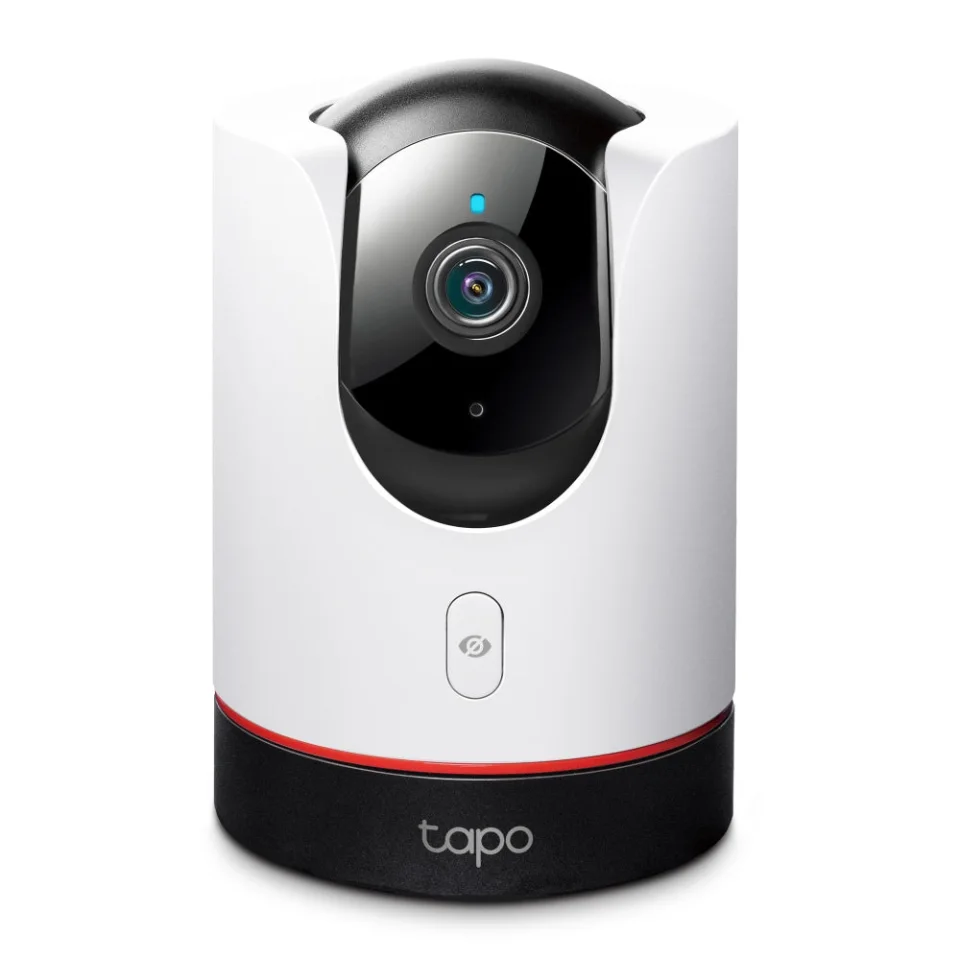
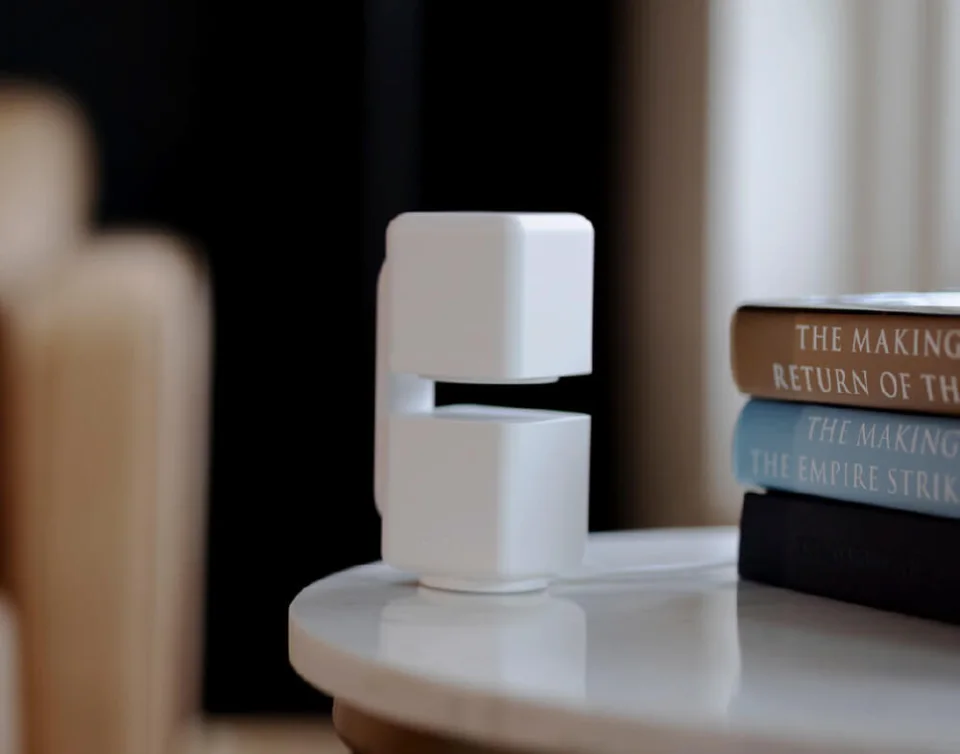
9. Use privacy mode, a shutter, or a schedule
Software settings can fail. A lens that is physically covered can't record anything. Many indoor cameras now have a privacy shutter, a lens that turns away, or a privacy mode, and most apps can switch cameras off on a schedule or when your phone is home. Use them for times when people are home and don't need to be on camera. If you are shopping, our Apple HomeKit camera guide and the reviews linked in this article note which models include a physical shutter.
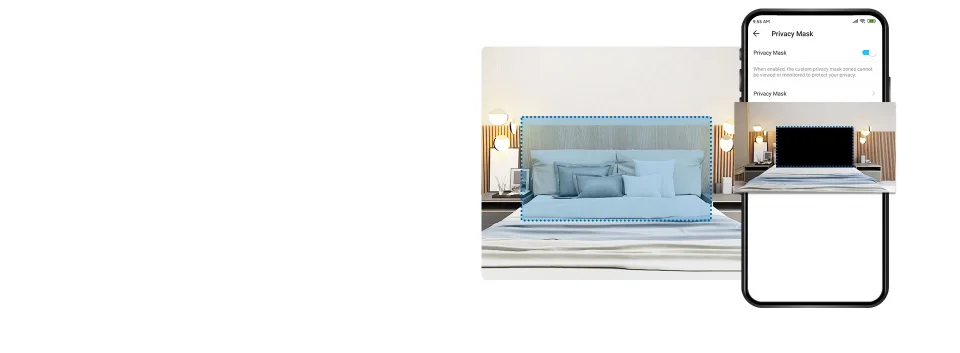
10. Mask what the camera shouldn't see
Privacy mask or privacy zone settings black out part of the picture, such as a desk with a computer screen, a bedroom doorway, or a window that looks into a neighbor's home. It is a sensible layer on top of good placement. Our guide on where to put an indoor security camera covers which spots to avoid in the first place.
11. Audit shared users and signed-in devices
Every few months, open the app's sharing or user settings and remove anyone who no longer needs access. Then look for a list of signed-in or trusted devices and remove old phones and tablets. If your camera or account shows a login history, scan it for locations or times that don't match your routine. The FTC suggests checking IP camera access logs for exactly this.
12. Decide where your recordings live
Recordings on a microSD card stay in your home, while cloud recordings sit on the company's servers under your account's protection. Neither is automatically safer: a card can be stolen with the camera, and a cloud account is only as safe as its password and 2FA. We weigh the two in local storage vs a subscription.
Signs your camera may be compromised
- You get a sign-in alert or a verification code you didn't request.
- The camera moves, talks, or changes settings when nobody in your household touched it.
- A shared user, device, or login appears that you don't recognize.
- Your password stops working, or the account email has changed.
Treat a verification code you didn't ask for as a warning: someone likely has your password. Don't share the code with anyone, and change the password right away.
What to do if you think someone got in
- Cover the lens or unplug the camera.
- From a device you trust, change the camera account password and the password of the email address tied to it.
- Turn on two-step verification if it isn't already, and sign out of all other devices if the app offers that option.
- Remove unknown shared users and devices.
- Update the camera firmware and change your router's admin and Wi-Fi passwords.
- If you still see activity you can't explain, contact the manufacturer's support team. A factory reset followed by a fresh setup is the last resort.
Before you buy: security features to look for
If you haven't bought a camera yet, use security as a tiebreaker. Look for two-step verification, a clear record of firmware updates, encrypted video, user permissions for shared access, and a physical shutter or privacy mode. The FTC also suggests looking for a camera that lets you turn off remote viewing if you don't need it.
FAQ
Can indoor security cameras be hacked?
Yes, but most incidents start with a reused password, an account without two-step verification, or outdated firmware rather than a break in the camera's encryption. Fixing those three things removes most of the risk.
Is two-step verification really necessary for a camera app?
It's the single most useful step. It stops someone from signing in with a leaked password alone, which is the most common way strangers get into camera accounts.
Should my cameras be on a separate Wi-Fi network?
It's a good idea if your router makes it easy. A guest or separate network limits what an attacker can reach if either a camera or a computer on your main network is compromised.
Does a privacy shutter actually help?
Yes. A shutter or a lens that turns away is the one protection that doesn't depend on software, passwords, or the company's servers. If the lens is covered, nothing can be seen.
Are local-storage cameras safer than cloud cameras?
Not automatically. Local storage keeps recordings off company servers, but the camera usually still connects to the internet for live view. Secure the account and firmware either way.
How often should I check my camera's security settings?
A quick review every three months works for most homes: check for firmware updates, remove old shared users and devices, and confirm two-step verification is still on.
Comments
No notes yet. If you own one of these cameras, tell us what the spec sheet left out.